CCS Specified Personnel
There are 2 levels of CCS specified personnel - Person’s with Management and Control of the provider (PMC’s) and service level personnel. Your service needs to identify those who are considered PMC’s.
PMC checks
Each person to be added as a PMC must have all of the following background checks…
-
Working With Children Check (if required)
-
National Personal Insolvency Index Check - must be less than 6 months old
-
National Police Check – must be less than 6 months old
More information can be found on the Department of Education Website
Once the person has completed all checks ONLY a current PMC can add them under the provider.
Adding a PMC in Spike CCS Access
-
Log into Spike CCS Access using your Spike username and password
-
Select your provider (If you get a red error message you will not be able to proceed, contact the CCS helpdesk 1300 667 276)
-
Click on 3 dots on top righthand corner
-
Add Personnel
-
Enter the persons details
-
Select the position and enter a start date
-
Tick declarations
-
Upload the necessary documents
-
Create
-
Take a note of the person’s CCS person ID
-
Click on 3 dots on top righthand corner (again)
-
Add WWCC
Once you have created the person in Spike CCS Access you will need to enter their CCS person ID into Spike.
-
Go to Select Service > Select your Service
-
Employees tab
-
Right click on the employee’s name > update
-
Enter their CCS person ID
If there is no current PMC at your service you will need to contact the CCS Helpdesk 1300 667 276
Service level checks
Each person to be added at a service level must have ….
A Contact role requires no checks
An Administrator role requires National Police Check (must be less than 6 months old)
An Educator role requires both a current Working With Children Check and a National Police Check (must be less than 6 months old)
Once the person has completed all required checks a current PMC can add them.
Adding service level personnel in Spike CCS Access
-
Log into Spike CCS Access using your Spike username and password
-
Click on 3 dots on top righthand corner
-
Under Add Personnel select the relevant role
-
Enter the persons details
-
Tick declarations
-
Upload the necessary documents
-
Create
-
Take a note of the person’s CCS person ID
-
Click on 3 dots on top righthand corner (again)
-
Add WWCC
Once you have created the person in Spike CCS Access you will need to enter their CCS person ID into Spike
-
Go to Select Service > Select your Service
-
Employees tab
-
Right click on the employee’s name > update
-
Enter their CCS person ID
If the person has a Spike user account you will need to update their Spike user permissions
Managing CCS Specified Personnel
To end date CCS Specified personnel log into Spike CCS Access.
To end date a PMC…
-
select the provider > personnel
-
Click on their name
-
Under roles click on 3 dots at right hand side > edit.
-
Enter an end date
If you get a blue circle that won’t stop spinning just click on the back button of your internet browser
Do not end date any PMC’s unless you are sure you have someone else set up as the ‘member in common’
To end date a service level personnel… * select the service > personnel
-
Click on their name
Under roles click on 3 dots at right hand side > edit
-
Enter an end date
|
Tip
|
If their start date is prior to 02/07/2018 you will need to change it to 02/07/2018 (commencement of CCS) |
If you get a blue circle that won’t stop spinning just click on the back button of your internet browser
Authorised personnel
One PMC is also assigned the role of ‘authorised person’ to communicate with the CCS system. This person is known as the ‘member in common’ and must also be listed in PRODA as ‘director’ of the Organisation. (the meaning of ‘director’ in PRODA is different to the meaning of ‘director’ in an early childhood education and care setting)
CCS specified personnel & permissions in your Spike User Account
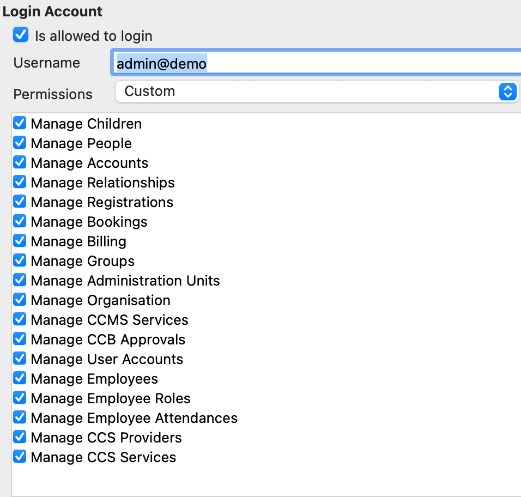
Spike users must only have the permissions ticked for ‘manage CCS providers’ and ‘manage CCS services’ if they are a PMC, see below…
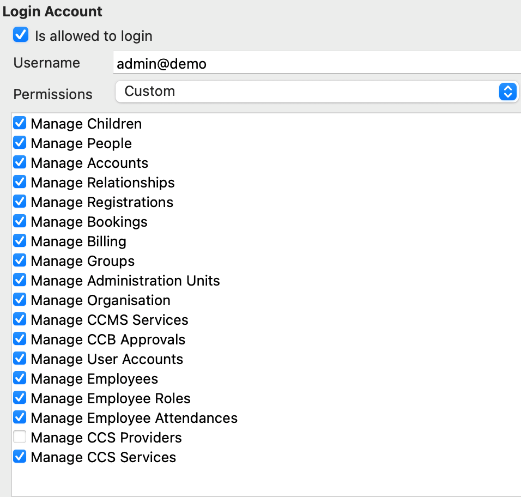
Spike users must only have the permissions ticked for ‘manage CCS services’ if they are a service level CCS personnel, see below…
For those Spike users that are not CCS specified personnel they must not have either box ticked, see below…
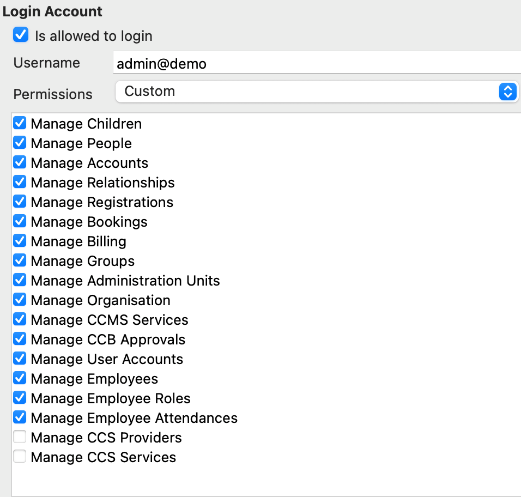
By ticking these boxes, you are giving the Spike user permission to log into Spike CCS Access.
Depending on which box is ticked they can access the Provider or the Service or both.
The Provider contains sensitive information that can be edited, hence the need for multiple searches.
To be able to apply for ACCS (child wellbeing) you must be a CCS specified personnel.
Once relevant searches have been completed and the person has been added to either the Provider or Service you can then update their permissions in Spike.
-
Go to Select > Organisation > User Accounts
-
Right click on the username > edit
-
Tick the relevant box/es, OK.
Whilst here you might like to update who can and cannot access Spike.
For those that no longer need to access Spike right click on the username > edit. Untick ‘is allowed to log in’.
PRODA – how to be added as ‘director’
|
Note
|
This is general advice as we do not have access to PRODA |
To be able to add yourself as ‘director’ in PRODA you must be listed on the Australian Business Register (ABR) of the business
If you are not currently on the ABR you need to identify someone who is, so they can add you.
Once added to the ABR you will need to wait approximately 24hours for PRODA to update.
-
Log into PRODA
-
Select Organisation (at the top)
-
Join an organisation
-
Enter the ABN and follow the steps
If you are having trouble you may need to contact the PRODA helpdesk on 1800 700 199 or ABR 139 226